
01 · Your academy control centre
Manage your online academy from one clear dashboard.
Manage learners, teachers, courses, bookings, payments, support and your public website without moving between separate admin tools.
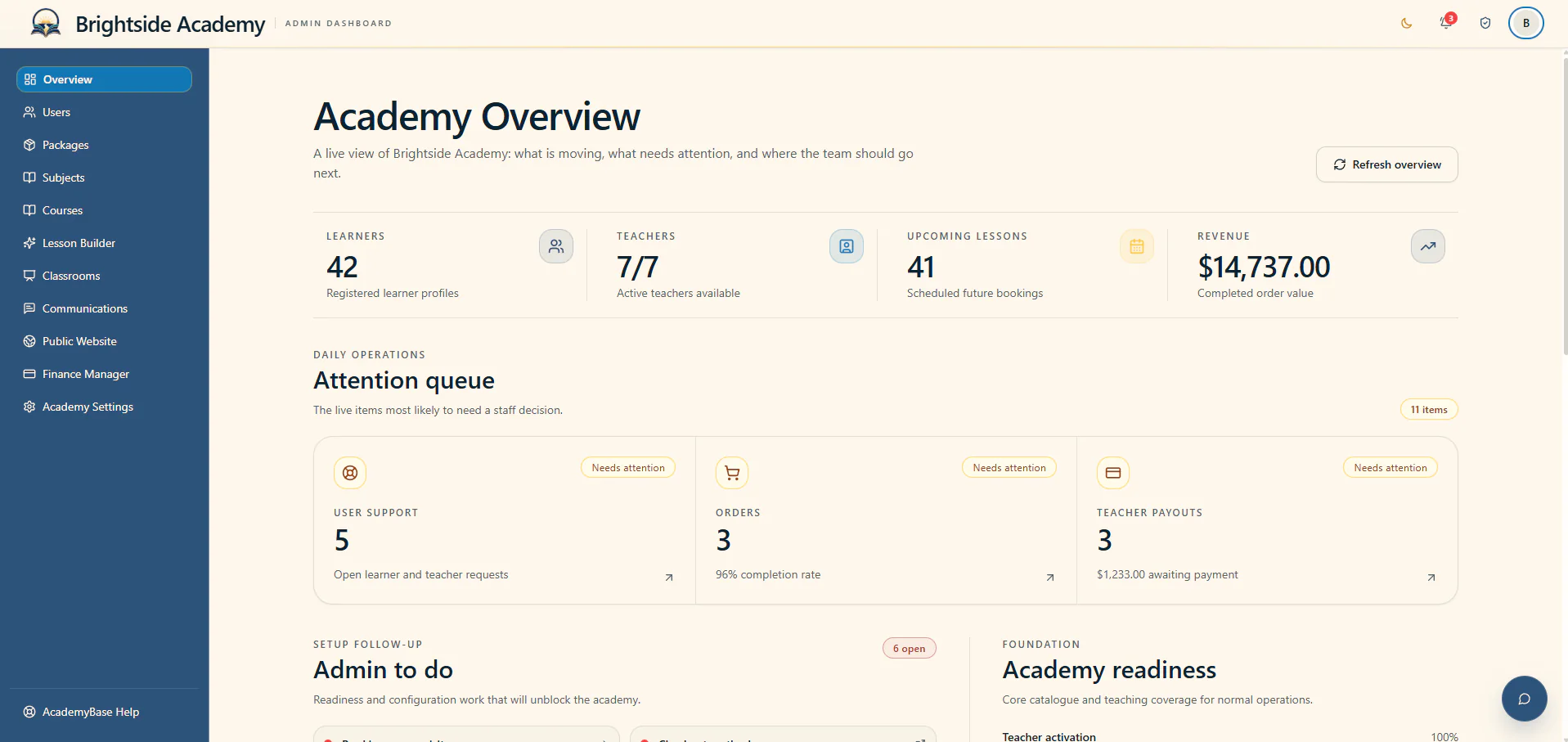
See what needs attention, make changes and keep a reliable record of how your academy is running.
Start with what needs attention
See today’s activity and next actions as soon as you sign in.
The overview shows key academy numbers, upcoming lessons, recent requests and tasks that need a decision. You can understand the day quickly without opening a long list of reports.
- Key academy activity
- Tasks that need attention
- Upcoming lessons and recent requests
Manage teachers and learners
Open a person’s profile, calendar and bookings from one place.
Teacher and learner records are organised separately. From each record, administrators can review profiles, activate accounts, check calendars and open booking details.
- Teacher and learner workspaces
- Activation and profile controls
- Calendar and booking oversight
Set up your subjects
Define each subject, its teacher rates and its progress levels.
Keep your teaching catalogue consistent by setting which subjects are active, what teachers are paid and how learner ability or progress is described.
- Active subject list
- Teacher rates and acceptance
- Your own proficiency levels
Sell lesson credits your way
Create once-off or recurring packages for each subject and audience.
Set the price, number of credits, availability, expiry and rollover rules for each offer. Learners then see those packages in a shop organised around what they want to study.
- Once-off and recurring packages
- Credit duration and rollover rules
- Clear pricing and package features
Build courses and lesson plans
Put lessons in order and attach the material before teaching begins.
Create a course under the right subject, arrange its lessons in sequence and upload the material teachers will use. Learners see a clear course, while teachers receive a practical lesson plan.
- Courses organised by subject and audience
- Lessons in the right order
- Material ready for the classroom
Manage support and announcements
Keep support requests organised and send updates to the right people.
Your team can prioritise incoming questions, respond to urgent issues and send branded announcements to selected learners or teachers.
- Prioritised support requests
- Announcements for selected audiences
- Messages branded as your academy
Help with live lessons
See which classes are active and step in when support is needed.
Administrators can view current classrooms, see the lesson and participants involved, and access the class when appropriate support or oversight is required.
- List of live lessons
- Lesson and participant details
- Classroom access for support
Update your public website
Publish courses, packages, FAQs and testimonials from your dashboard.
Website content stays linked to the academy information you already manage. You can see unpublished changes, update common questions and review privacy-conscious visitor analytics.
- See changes waiting to be published
- Manage FAQs and testimonials
- Visitor analytics with consent controls
Track money and teacher pay
Review orders, teacher payments and referrals with a permanent history.
The finance area brings together customer orders, teacher amounts owed, payment methods and referral activity. Detailed logs make it possible to check how a financial balance changed.
- Customer orders and performance
- Teacher payments and pay rules
- Referral activity and permanent records
Set your brand and academy rules
Control how your academy looks and how lessons should work.
Set your academy name, logo and colours, then define learner audiences, booking rules, lesson times, trial options, support details and legal documents.
- Name, logo and colours
- Audience, booking and trial rules
- Support details and legal documents
Get help from AcademyBase
Ask us for technical help, product guidance or a new feature.
Academy owners have a separate support route to AcademyBase, so questions about the platform do not become mixed with support requests from learners and teachers.
- Technical help
- Product questions
- Feature requests
Start with a private account
Ready to plan how AcademyBase could work for your academy?
Create an account and tell us about the academy you want to launch or improve. Your plan stays inside your private dashboard, and we review it before recommending the right setup.